Add a worksite
Go to Settings, Organisation, Worksites and click Add worksite. One worksite is included in your subscription, extra worksites are billed.
Getting started · Updated on 01/11/2026
A worksite is the place where your team works: your shop, your workshop or your office. The owner and HR can manage worksites.
Add a worksite
- Go to Settings, Organisation, Worksites.
- Click Add worksite.
- Fill in the Name. The Address is optional. The time zone is already set to Europe/Brussels.
- Click Save.
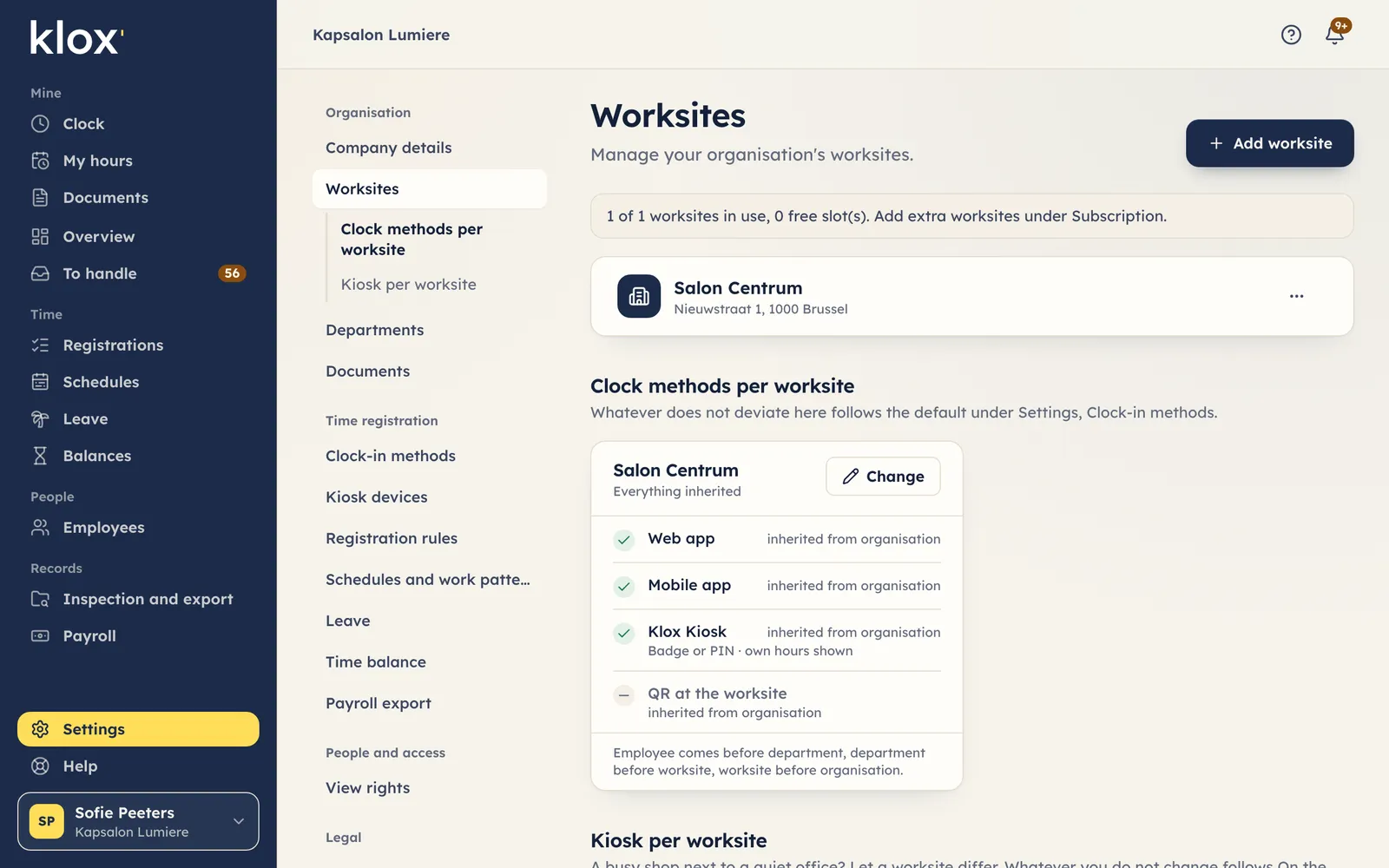
An extra worksite
One worksite is included in your subscription. If there is no free slot left, Klox shows the price before you confirm. The button then reads Add and bill extra. Only the owner can take on an extra worksite.
Change or stop a worksite
Open the menu on the worksite's row.
- Edit worksite: change the name, address and time zone, or fill in the company network.
- QR code: the poster for this worksite. See Clock in with a QR poster.
- Deactivate: the worksite is no longer active. Show inactive brings it back into view and Reactivate turns it on again.
What does the company network do?
If you fill in the company's public IP address, a clock-in from that network is marked as such. Nothing more: a clock-in from outside that network is never refused. To require someone to be at the worksite, use the required QR code.
Was this article helpful?