Add and invite employees
On Employees, click Invite and Klox sends an email. Under More options you can share a team link, paste a list or add someone without an account.
Getting started · Updated on 01/11/2026
The owner and the manager handle employees on Employees. To invite someone, your own email address must be confirmed.
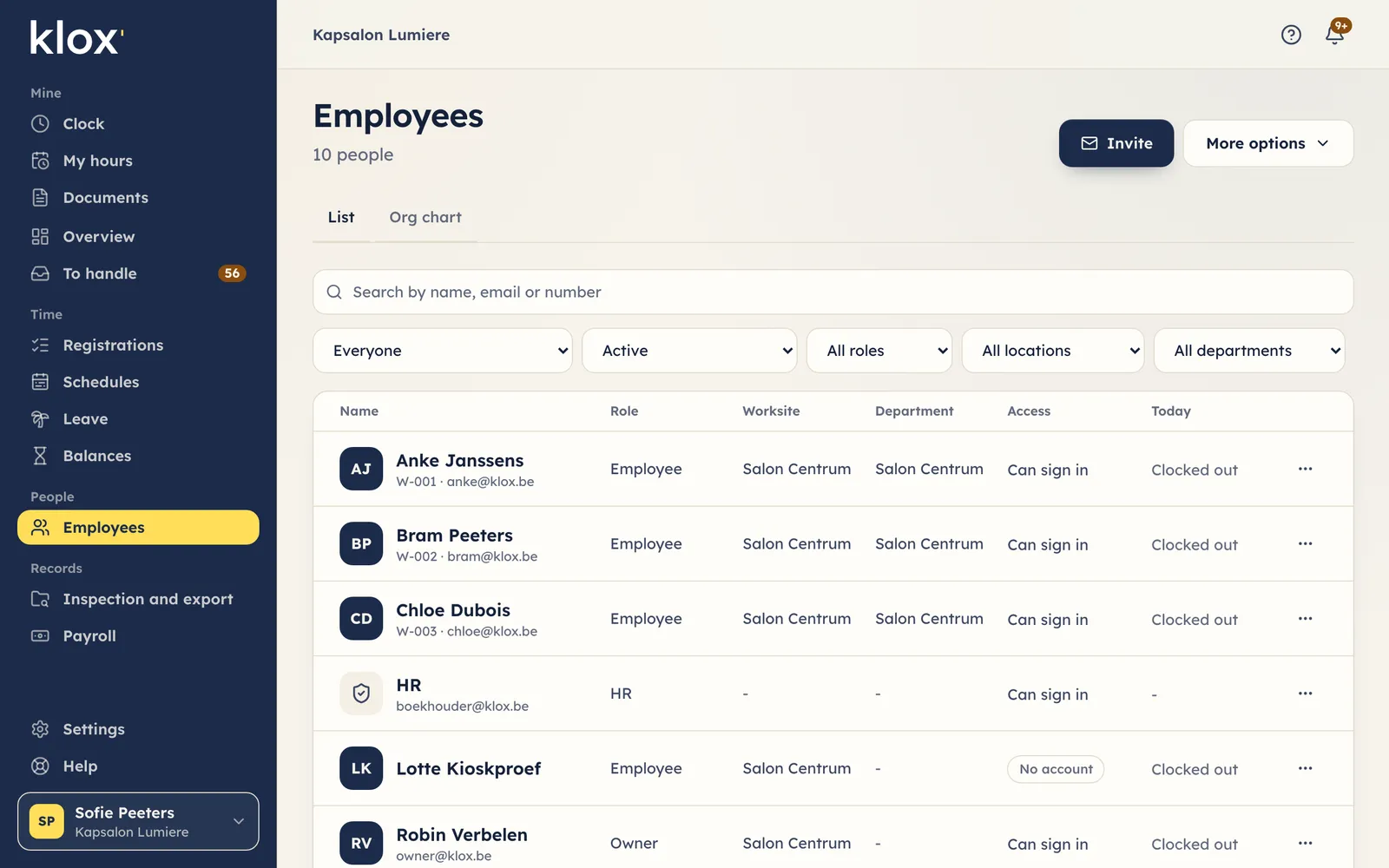
Invite one person
- Click Invite.
- Enter the email address and choose the role. See Who can do what?.
- For an employee, choose Create new employee or link an existing record.
- Enter the first and last name, then choose the worksite.
- Click Send invitation.
The employee gets an email, chooses a password and can clock in. The invitation is valid for 7 days. Nothing received? See My employee did not get the invitation.
Several people at once
- Click More options and choose Invite multiple.
- Paste a name and email address per line: Jan Peeters, jan@example.be
- Click Import team.
You can paste up to 50 lines at once. Klox reports the result for each line.
With a team link or QR code
Handy if you do not have the email addresses at hand.
- Click More options and choose Team link and QR code.
- Click Generate link.
- Share the link with Copy link, or print a poster with Print poster (A4). The QR code and the poster are only shown right after generating.
- Whoever opens the link asks to join. You click Approve or Reject under Requests to join.
Revoke stops the link, New link creates another one. Someone who gave an email address gets an invitation after your approval. Without an email address, Klox only creates an employee without an account.
Someone without an account
If someone only clocks in on the kiosk, no account is needed.
- Click More options and choose Add employee.
- Enter the first and last name. The personnel number is optional.
- Choose the worksite and the contract type.
To invite them later, use the menu on their row: Invite.
What does the Access column mean?
- Can sign in: the account is active.
- Invited: the invitation is open.
- No account: the employee has no login.
- Access revoked: signing in is no longer possible.
Every active employee counts in your subscription. See Which plan should I choose?.
Was this article helpful?