How do I send the hours to my payroll provider?
Choose your provider under Payroll export, close the month under Payroll and download the file. You pass it on yourself: Klox sends nothing.
Payroll and export · Updated on 01/11/2026
This feature is part of Compliance Plus.
Every month you close the month in Klox and download a file for your payroll provider (social secretariat). Klox does not send that file itself: you pass it on the way you agreed with your provider.
The owner and HR can do this.
One-time setup
- Open Settings, Time registration, Payroll export.
- Choose your Social secretariat. If it is not listed, take the general CSV option or the option for another provider.
- Fill in Your company's number at the social secretariat.
- Check the Payroll codes. Anything your provider does not need, set to Do not send.
- Under What Klox counts, choose what you want to include, such as Meal vouchers or Telework days. This is off by default.
- Save.
- Open each employee under Employees and fill in Payroll number (payroll office) and Status under For payroll.
Closing the month
- Open Payroll and choose the month. You see Ready to close once the month is over.
- Under Resolve first, sort everything out with the Fix button. Without that you cannot close.
- Under To check, go through the other items. They do not stop you.
- Click Close month and confirm.
- Under Versions, click Download.
- Pass the file on to your provider.
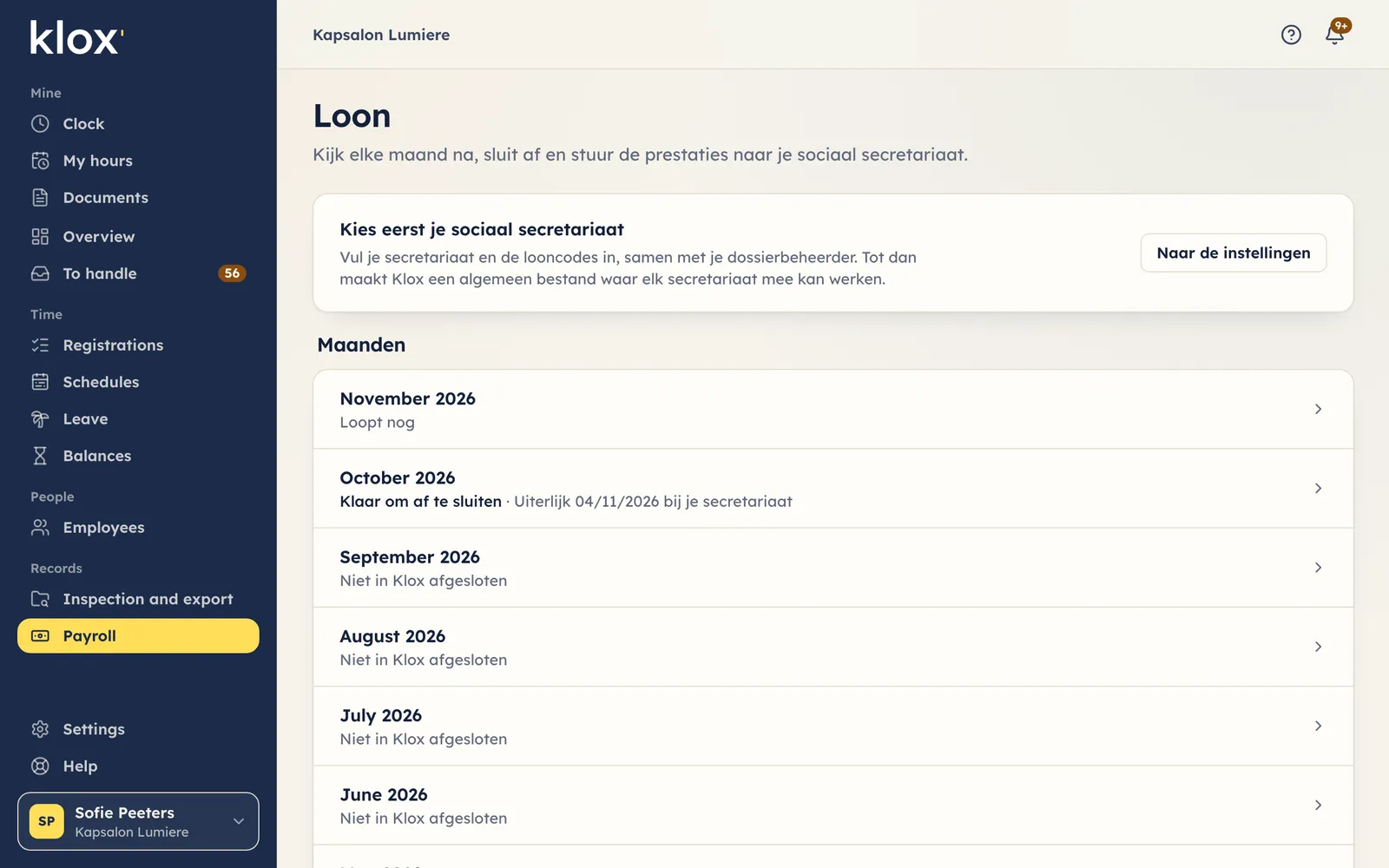
In the settings you choose by which working day you close (the third by default) and how many working days ahead you get a reminder (two by default).
What stops you from closing?
- The month is not over yet.
- A day is not ready yet, for example because of an open shift.
- A leave request is still open.
- For a provider with its own file: a payroll number is missing, or a type of hours has no payroll code.
Unallocated overtime does not stop you, but it goes out as hours worked. So allocate it first.
Something changed after closing?
A correction after closing appears under Changed after closing. Click Create version 2 (or the next number) and give a reason. That version only contains the employees that changed, for the whole month. Pass it on to your provider.
Interim export for blue-collar workers
If an employee has the Blue-collar status, you see Interim export for blue-collar workers. With Download 1st to 15th you get the first half of the month. This closes nothing.
Only need an overview, for example for your accountant? Use a custom export.
Was this article helpful?