How do I approve or reject a leave request?
Open To handle, choose Leave requests and click Approve or Reject. The employee gets a notification about your decision.
Leave and schedules · Updated on 01/11/2026
This feature is part of Compliance Plus.
The owner and HR decide on all requests, a manager on those of their own team. They get a notification when a request comes in.
Deciding on a computer
- Open To handle.
- Filter on Leave requests.
- Click Approve or Reject next to the request.
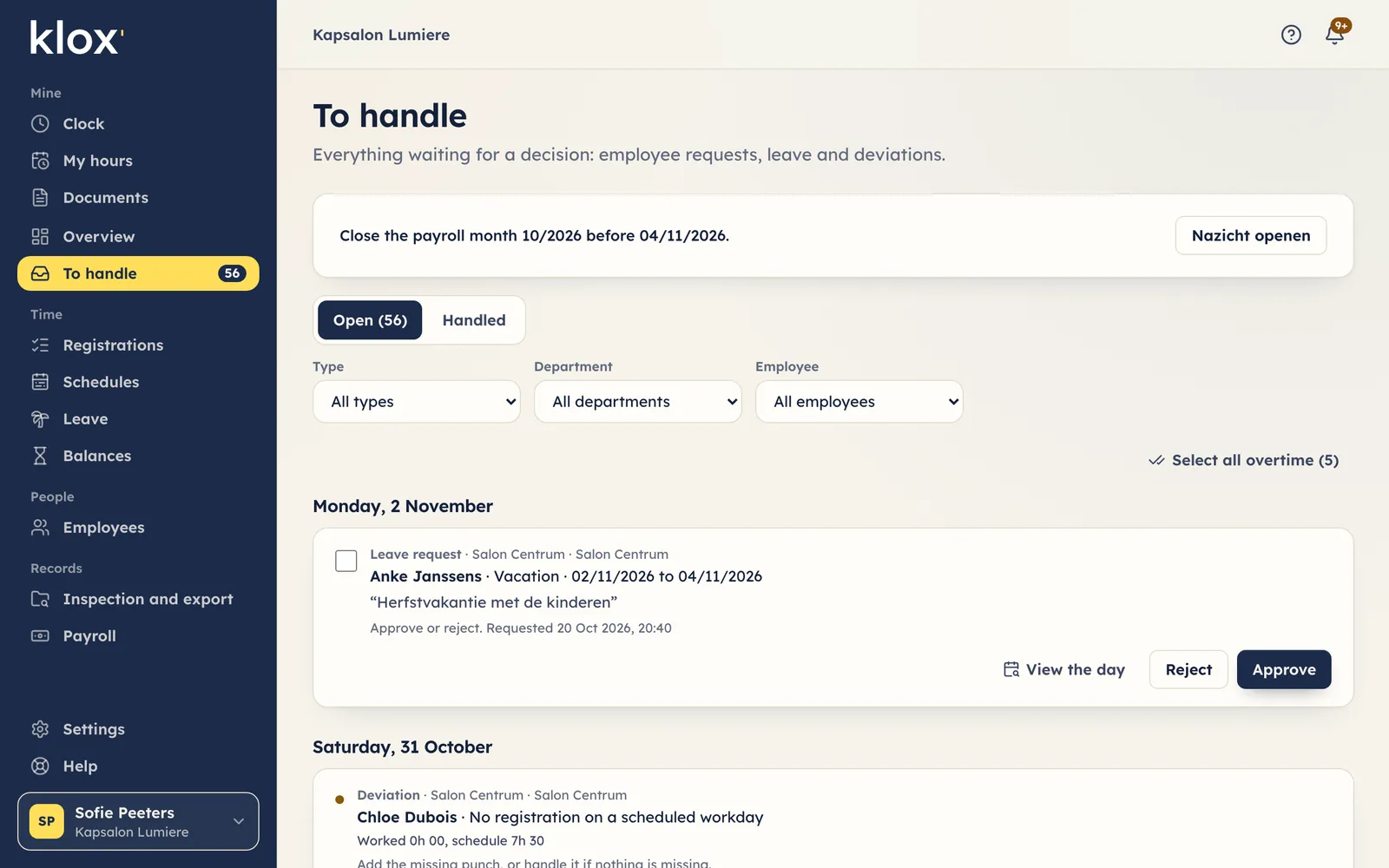
Several requests at once? Select them and then choose Approve or Reject. You can also decide from the list under Leave.
Deciding in the app
Tap More, then To handle. Then approve or decline the request there.
What happens next?
- The employee gets a notification of your decision.
- Approved leave sets the expected hours for that day to zero, or to half for a half day.
- While a request is open, the day counts as a normal working day. An open request also stops you from closing the payroll month.
Requesting for someone else
Under Leave, click Request leave and choose the Employee. This is useful for people who do not use the app.
Setting the rules
The owner and HR set this under Settings, Time registration, Leave:
- Active leave types: the types your team can choose. You can also add your own.
- Employees can submit their own requests: if this is off, you request leave for them.
- Reason required, Min. days in advance and Max days per request. For the last one, 0 means no limit.
Not working?
- You cannot decide on your own request: someone else does that. Only the owner decides on their own leave.
- Message that the request has already been decided: someone else got there first. Refresh the page.
- A decision was wrong: there is no button for that. After a rejection, the employee can submit a new request. If approved leave has to be cancelled, contact us.
Was this article helpful?