How do I download the inspection file?
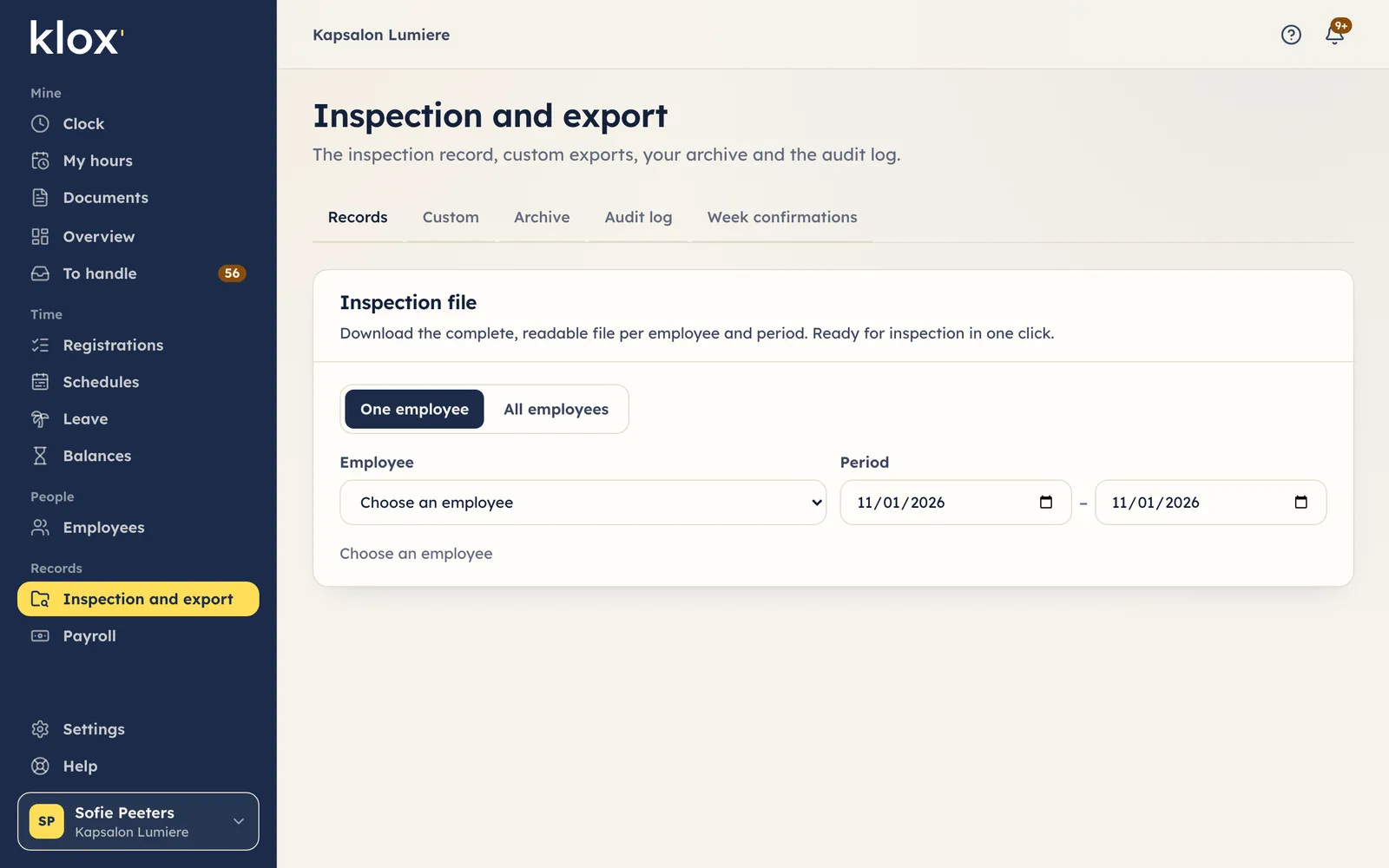
Open Inspection and export, choose one employee or all employees, choose the period and download a PDF, a CSV or a ZIP.
Inspection and records · Updated on 01/11/2026
The file contains the registrations per employee and per day, with all corrections. You create it on a computer. The owner, HR and managers can do this, a manager only for their own team. It works on every plan.
One employee
- Open Inspection and export, Records tab.
- Choose One employee and select the person.
- Choose the Period.
- Click Export PDF or Export CSV.
All employees
- Open Inspection and export, Records tab.
- Choose All employees.
- Choose the Period. Filter by worksite, department or contract type if you like.
- Click Download ZIP.
The ZIP contains a PDF and a CSV per employee, including employees who have since left. It also includes an index, a readme file and a list of checksums. If overtime has been allocated, there is also an overtime file. For the ZIP, your email address must be confirmed.
What is in the PDF?
- The register per day: in, out, breaks and totals.
- Corrections, with author, time and reason.
- Voided registrations, which stay visible.
- Allocated overtime and week confirmations, if your company uses them.
- A verification code at the bottom. Anyone can check it at klox.be/en/verify.
An automatic clock-out that has not been confirmed does not count towards the hours.
Good to know
- Every export appears in the audit log.
- Is your access blocked, for example because of an unpaid invoice? You can still export.
- You cannot create a file in the app. Open Klox in a browser.
- If the download fails, try a shorter period or try again later. If it keeps failing, contact us.
Is an inspector coming? Read what to do in Klox. An employee can download their own hours.
Was this article helpful?