Handle a correction request
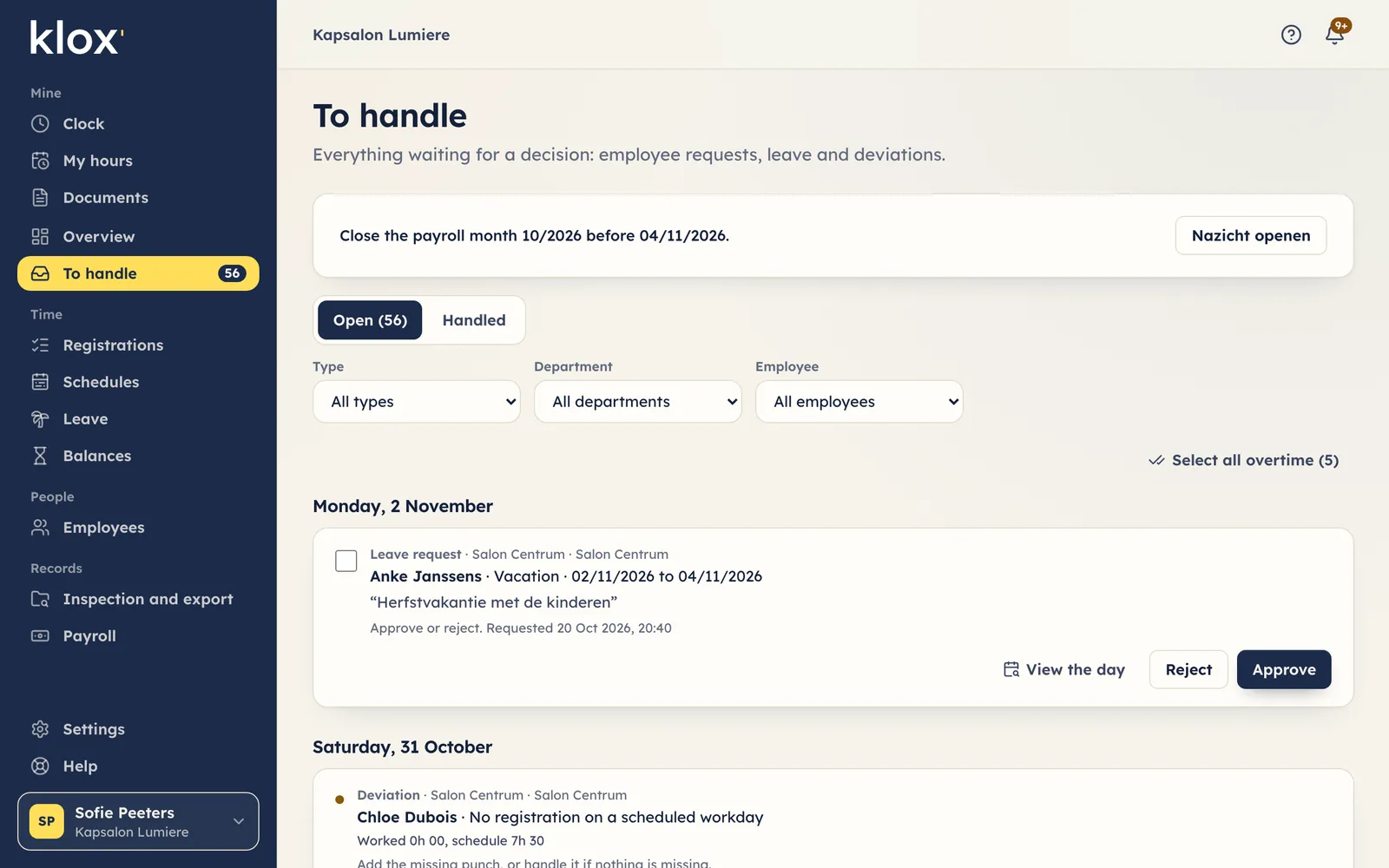
Open To handle and choose Correct, Void, Add punch or Reject. The raw record always stays in place; the correction is added on top of it.
Registrations and corrections · Updated on 01/11/2026
An entry in Klox is never overwritten or deleted. A correction is added separately, with your name, the time and the reason. That way you always see what was there originally and what changed.
Who can decide
- The owner can always correct, including their own entries.
- A manager decides for the people within their view rights, as long as Managers can make corrections is on in Registration rules. They cannot correct their own entries.
- HR sees the requests, but does not decide on corrections.
Handle a request
- Open To handle and filter on the type Correction requests.
- Read what the employee asks. View the day shows their entries for that day.
- Choose an action.
- Correct: for a wrong time. Choose the record, enter the right time and give a reason. Then click Handled: a correction does not close the request by itself.
- Void: for a punch that should not count, e.g. clocked by accident. It stays visible in the register and the dossier, but no longer counts.
- Add punch: for a missing punch. See Add a forgotten punch.
- Reject: if the entry is right. A reason is required and the employee sees it under My hours.
If the request came from a kiosk, the request shows that.
Limits of a correction
- A correction can differ at most 48 hours from the raw time and cannot be in the future. If the right time is further away, void the punch and add a new one.
- Correction window (days) in Registration rules limits how far back you can correct. 0 means unlimited.
- If you correct an entry several times, the last correction applies. The earlier ones stay on record.
Correct without a request
You can also correct without a request, for example when you spot a mistake yourself.
- Open the employee via Employees or Registrations.
- Click Correction next to the entry.
- Fill in Corrected time, optionally Corrected type, and the Reason for the correction.
- Click Save correction.
In the same place you find Declare invalid. Declared something invalid by mistake? Restore makes the entry count again. The invalidation stays on record.
An employee with an account is told about every correction, invalidation and restoration, always by email too. Everything goes into the audit log.
In the Klox app
As a manager you also find requests in the app, under To handle. There you can reject with a reason and void an entry. To fix a time or add a punch, use the web app.
Was this article helpful?