Where do I see my balance and what does it mean?
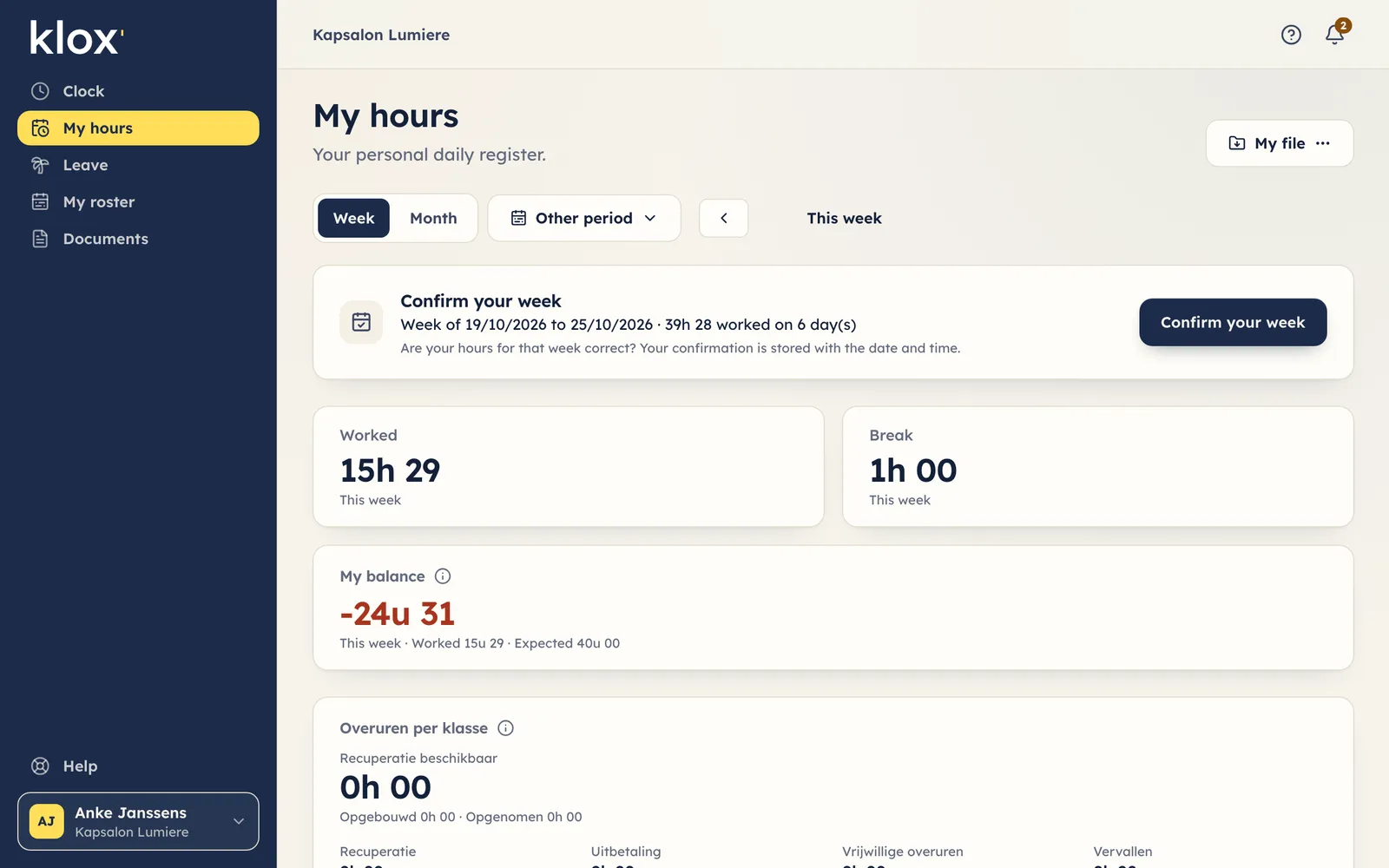
The balance is your time worked minus your expected time. Employees see it under My hours, administrators under Balances.
Overtime and balances · Updated on 01/11/2026
This feature is part of Compliance Plus.
The balance is the time worked minus the expected time up to today. The expected time comes from the schedule. A plus means more was worked than expected, a minus means less.
As an employee
- On a computer: open My hours. The My balance card follows the period you choose. If your company allocates overtime, you also see Overtime per category and the History there.
- In the app: open My hours. There you see your balance for this week.
As an administrator
- Open Balances.
- Read Worked, Expected, Replacement days and Balance per employee.
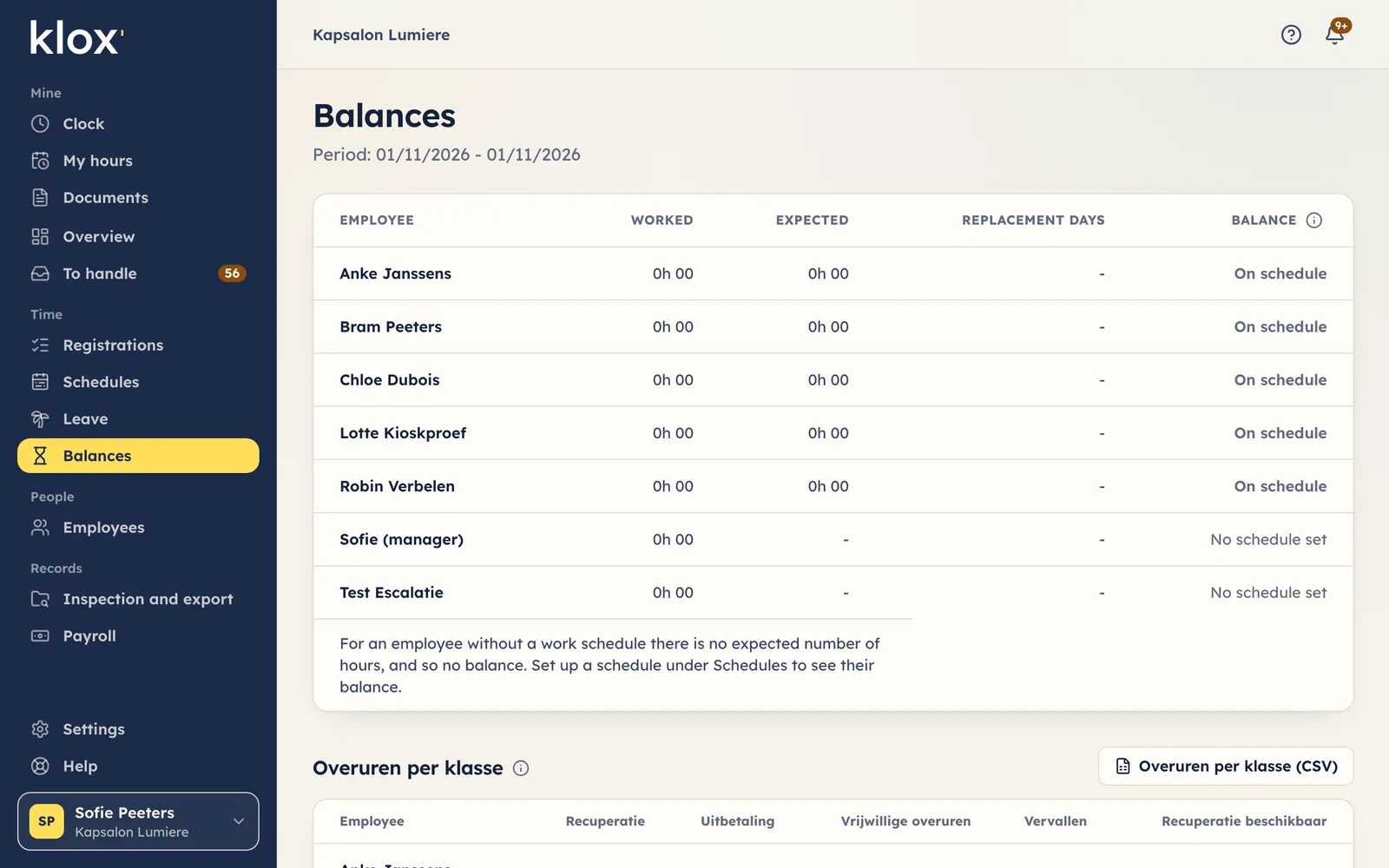
You see the active employees here, and a manager only sees their own team. The period on this page is the Reference period: this week or this month. You choose it under Settings, Time registration, Time balance.
Need another period? Open the employee under Employees, choose the period and look under Balance and leave.
Balance looks wrong?
- No schedule set: without a schedule, Klox cannot calculate a balance. Your employer sets that up.
- On schedule: the difference is smaller than the threshold your employer set under Balance threshold (min).
- Today: the current day only counts for what has already been worked, so you do not go into the minus during your shift.
- Automatic clock-out: minutes from an automatic clock-out that has not been confirmed do not count. Read what to do after forgetting to clock out.
- Leave not approved yet: while a request is open, the day stays a normal working day.
- A registration is wrong: request a correction.
Want to allocate overtime to categories, such as time off in lieu or payout? Read allocating overtime.
Was this article helpful?